
# Digital Assets
The Villanova Web Content Management System (WCMS) includes capabilities to manage content and digital assets. These can include images, documents and other media files in the following formats.
Default Supported Document Formats: pdf, xls, doc, ppt, txt, rtf, sxw, sxc, odt, ods, odp, tar, gz, zip, rar, flv, swf, avi, wmv, ogg, mp3, wav, ogm, mov, iso, nrg, docx, docm, xlsx, xlsm, xlsb, pptx, pptm, ppsx, ppsm, sldx, sldm
The WCMS in the App Builder can be configured to allow or exclude any type of file extension. The MIME type of each asset should be specified.
Default Supported Image Formats: jpg, jpeg, png, svg, svg+xml
# Manage Assets
- Log in to the App Builder
- From the left sidebar, go to
Content→Assets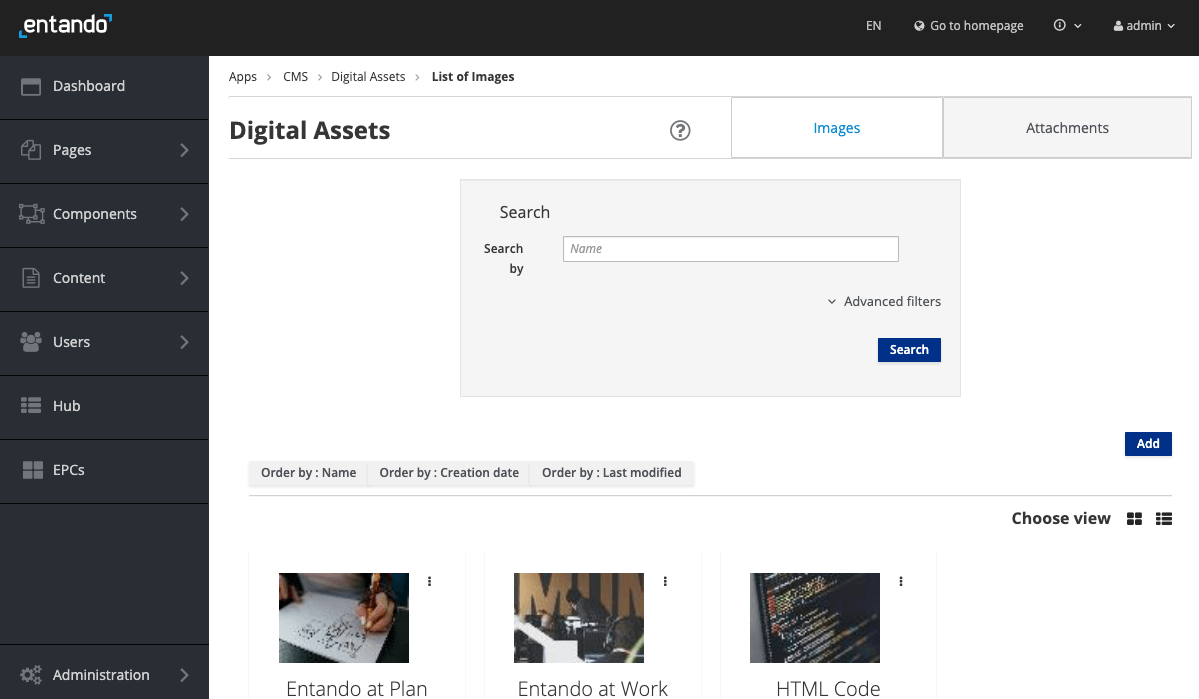
- Select
ImagesorAttachmentsin the tabs at the top of the page - Search for assests by name and/or by using the
Advanced filters - Assets are displayed in alphabetical order by name. Organize the results with the
Order bybuttons just above the list. Toggle between list and grid formats with theChoose Viewbutton. - Click on the action menu (indicated by three vertical dots) of the item to edit or delete it.
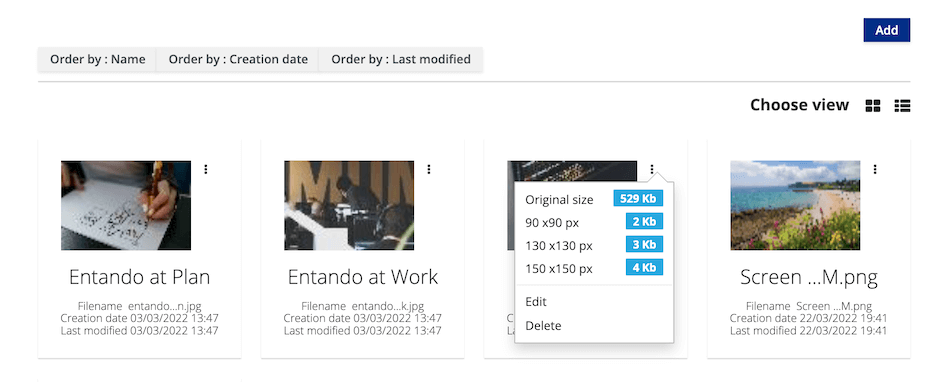
- Select
# Add a New Asset
- From the left sidebar, go to
Content→Assets - Click the
Addbutton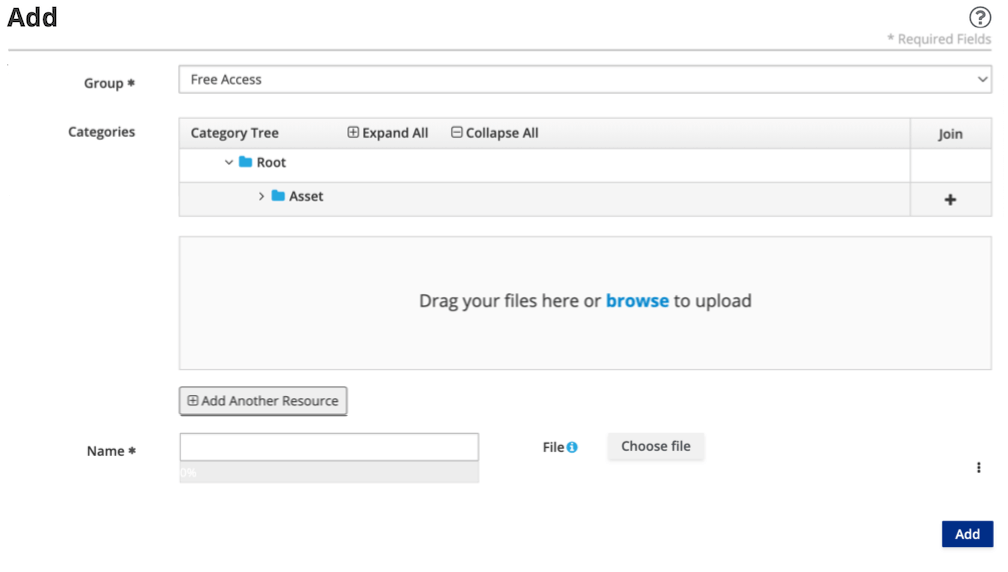
- Define the asset's parameters:
Group: Choose from the drop-down menu. This is a required field and defaults toFree Accesswhich does not limit access. Additional groups can be defined in the Users section of the App Builder.Categories: You have the option to add the asset to a category using the+button underJoin. Categorizing an asset expands the criteria by which it can be searched and sorted. New categories can be created viaContent→Categories.- Add your asset by dragging it into the frame or click
browseto select it from the file system. The file you choose should appear in the Name field. Use theAdd Another ResourceandChoose filebuttons to select multiple items simultaneously.
- (Image only) You have the option to flip, rotate or crop your image by selecting Edit from the kebab drop-down menu of each item.
- Click
Saveto upload your asset(s). - Confirm the list of images or attachments displayed in the table.
# Edit Assets
From the left sidebar, go to
Content→AssetsClick on the action menu (indicated by three vertical dots) next to the item
Select
Editto modify the asset:- Edit the asset name via the text field
- Edit the asset's category using the
+button underJoin - To edit an image:
- Click on the actions menu to the right of the image and select
Edit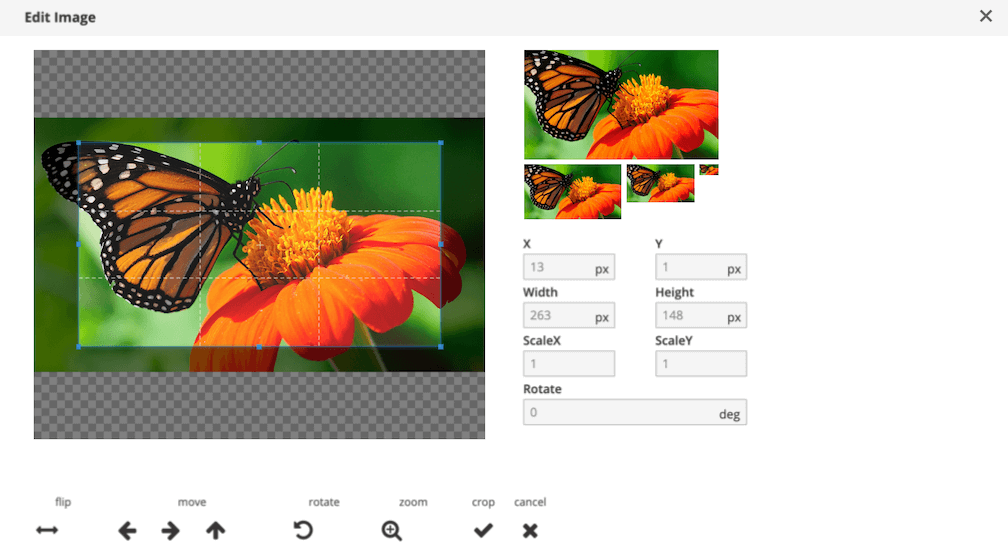
- Use the arrows to flip, rotate, zoom or recenter your image. Use the select window to resize. Click
Freeto remove the resizing ratio restrictions. - Click the check button after all changes are made.
- Click
Closewhen all changes are done
- Click on the actions menu to the right of the image and select
Click the
Savebutton to save your edits
TIP
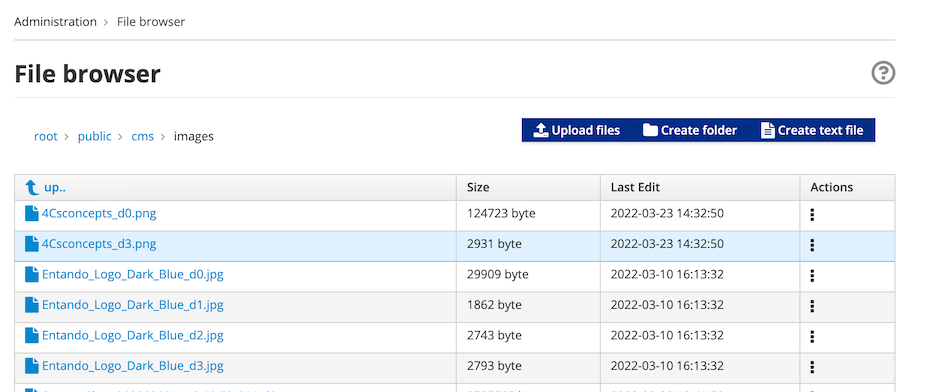
To organize or download assets, go to Administration → File browser and navigate to /public/cms
# Embed an Image on a Page
An image can be embedded on a page using FreeMarker code like this:
<@wp.resourceUrl>cms/images/YOUR-ASSET.jpg
Go to Administration → File Browser and navigate to /public/cms to see the list of uploaded images.
# Include an Asset in Content
The asset can be added to a content type that has an Attach or Image attribute. Refer to the Content Type tutorial for detailed instructions.
# Configure File Extensions for Upload
The file types that can be uploaded to an Villanova Application are defined on the server side of the App Builder, in the entando-de-app of a quickstart application.
Two properties in src/main/conf/systemParams.properties specify the supported file types via comma delimitted lists:
jacms.imageResource.allowedExtensions=jacms.attachResource.allowedExtensions=
For example, jacms.imageResource.allowedExtensions=jpg,jpeg,png,svg,svg+xml, where svg+xml is the MIME type for an SVG image. The MIME type of an asset is checked by APIs that support them and should be defined in addition to the asset's file extension.
The systemParams.properties file is bundled into the WAR, so an image must be created and deployed to reflect changes to these properties.