
# Manage Roles, Users and Groups
# Role-based Page Management
Villanova provides distributed editorial controls for building composable applications. With editing privileges based on roles and groups, a user only sees the application pages they're given access to when they log in. Users are assigned roles and groups based on group ownership so teams can manage portions of the application that belong to them.
This tutorial demonstrates how to grant editorial access to a particular page in an application.
To add controls to micro frontends and/or microservices, see the Role Based Access Controls for Micro Frontends & Microservices tutorial.
# 1. Create a Role
This role will have access to edit, delete, and create pages. Users are assigned roles and then added to groups who own the pages of an application.
- Log in to your Villanova App Builder.
- Go to
Users→Rolesin the left navigation menu. - Click
Addto create a new role. - Enter a name and code.
- Turn
ONthe following selections underPermissions:Content Editing,Access to Administration AreaandOperations on Pages. - Click
Save.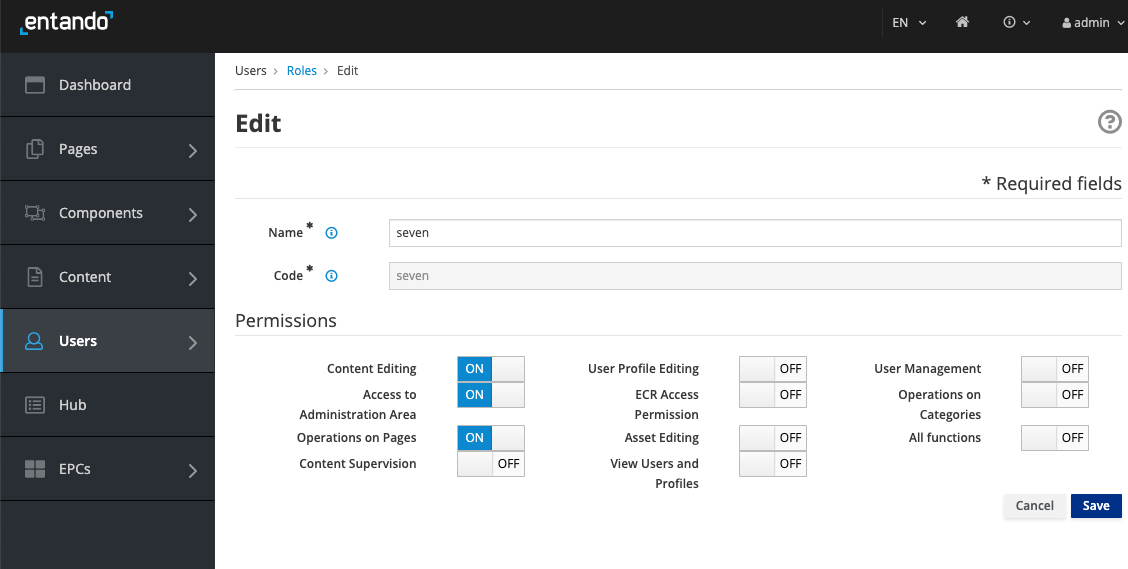
# 2. Create a Group
- Go to
Users→Groupfrom the left navigation menu. - Click
Addto create a new group who will manage a subsection of the application. - Enter a name and code. Click
Save
# 3. Add a New User, assign role and group
- From the left navigation menu, go to
Users→Management. - Click
Addto create a new user. - Enter a
UsernameandPassword. Select the defaultProfile TypeandStatus:ON. - Click
Save. The user account will appear withStatus:Expired Passworduntil the first time they log in and reset their password. To change this status or add an email, go toEditfrom theActionsmenu of the User account.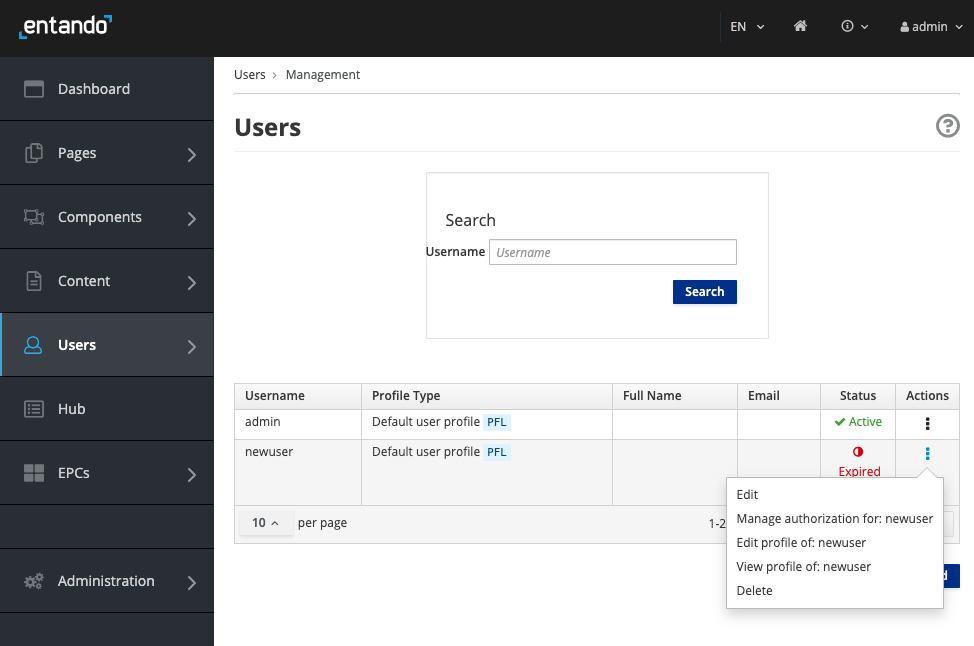
- For the new user, select
Manage Authorization for: USERNAMEunder theActionscolumn. - Select
Add new Authorizationand choose theUser GroupandUser Rolecreated in the previous steps. ClickAdd. - Click
Save.
# 4. Create a New Page and Assign Owner Group
- Go to
Pages→Managementfrom the left navigation menu. - Click
Addto create a new page. - Add
Title,Codeand other fields as appropriate. See Page Management for more details. - Under the
Page groupsheading, choose theOwner groupwho should have editing privileges to this page. IfFree Accessis chosen, everyone can view this page and users with access to the App Builder can edit the page. - Click
Save.
When the new user logs in, they will only have access to the pages for which they are part of the authorized Owner Group.
# Existing Page Assignment
If you need to assign editorial access to existing pages, add the user to the current Owner Group for the page in the User Management section. If a new group was added, go to Pages → Management, and select Edit under the Actions drop-down menu to reassign Owner group for each page.