# Content Types
On Villanova, content refers to a specific instance of a content type. A content type provides the template to specify and represent content.
Content types are characterized by attributes. Each attribute is a specialized instance of an attribute type and defined by the parameters available to that attribute type.
# Create a Content Type
Content types are managed by the Villanova Web Content Management System (WCMS) in the App Builder. Follow the steps below to create and configure a content type.
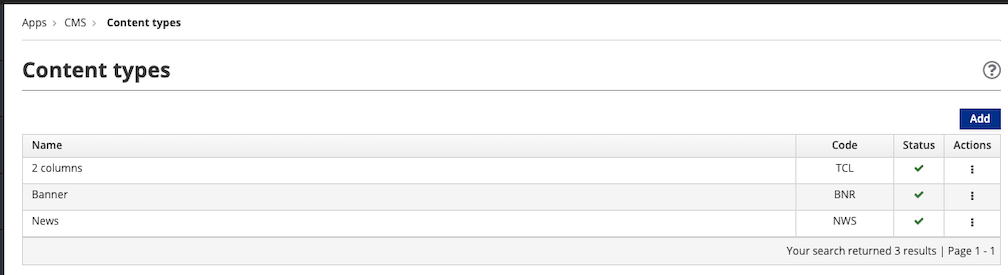
1. From the left menu of the App Builder, go to Content → Types
2. Click the Add button in the upper right corner
3. Configure the content type
Enter these required fields:
Code: A unique identifier of the content type consisting of 3 uppercase lettersName: A string of 50 characters or less consisting of uppercase and lowercase letters, numbers, and/or special characters
To specify a meaningful content type, you must choose the appropriate attribute
Typefrom the drop-down menu
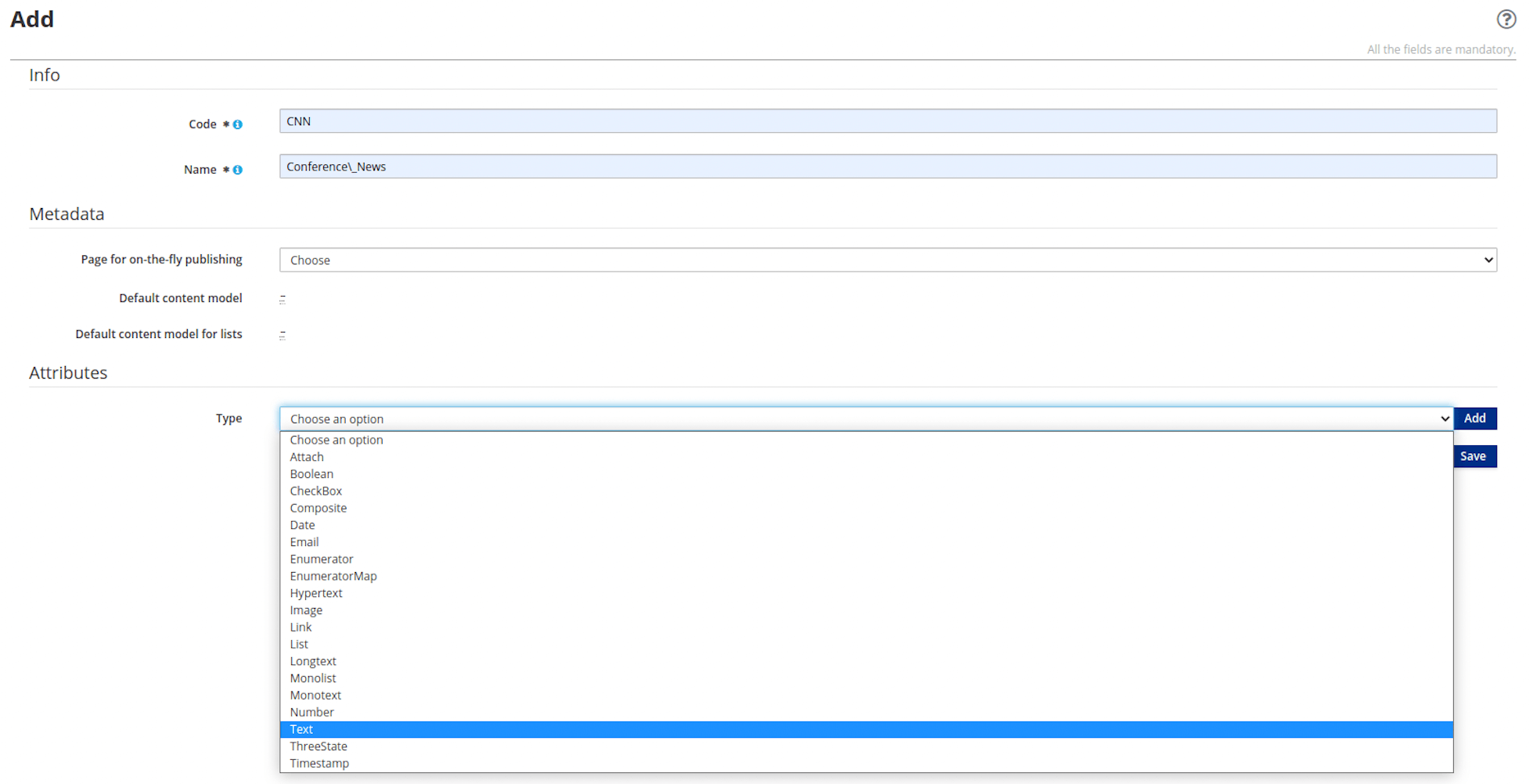
4. Click Addto configure the details of the selected attribute type
# Configure the Attribute
When the configuration form loads, the Type field should be auto-filled with what was selected.
1. Define the parameters of the attribute:
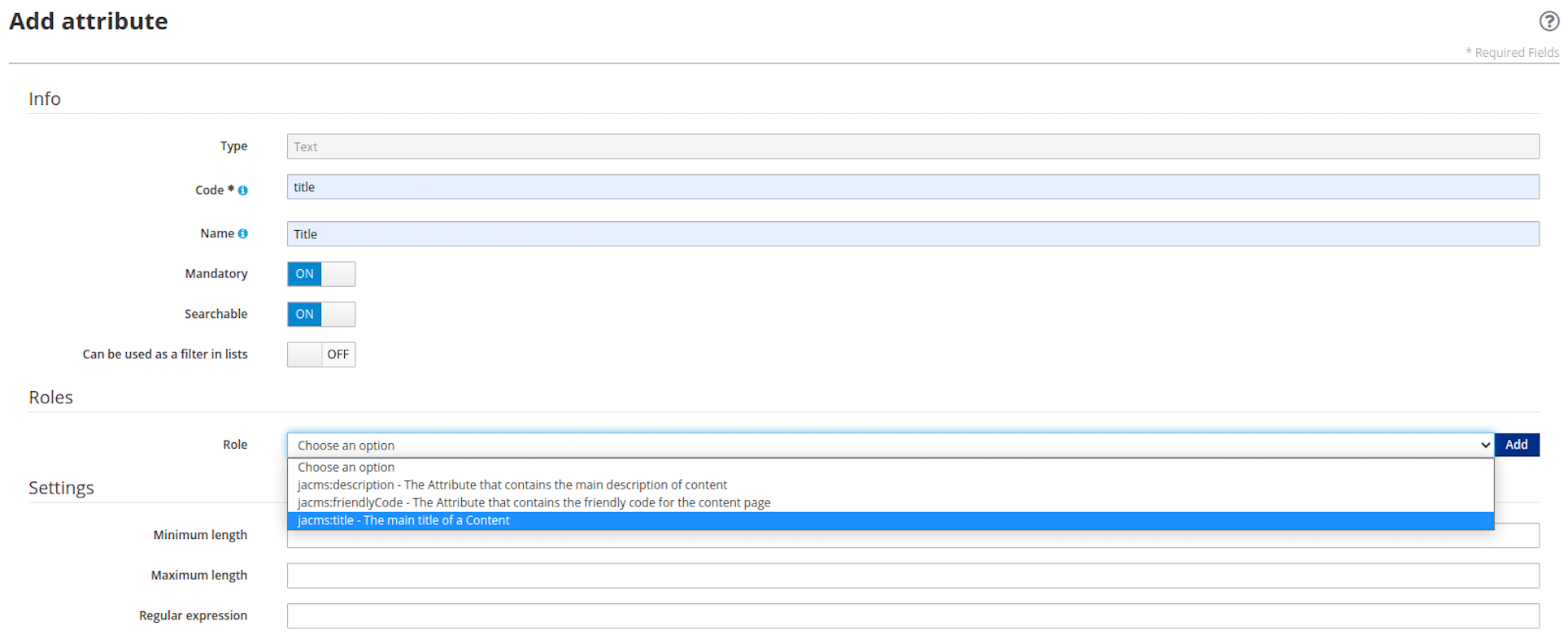
Code: A unique name mandatory for the attribute. This field supports a string value of 10 characters or less, and should consist of one or more of the following: uppercase & lowercase letters, numbers, and/or special characters.Name: Enter a description of the attribute. This field supports a string of 50 characters or less, and should consist of one or more of the following: uppercase & lowercase letters, numbers, and/or special characters.Certain attribute types allow you to declare the attribute as
Mandatory,Searchableand/orCan be used as a filter in listsvia toggle buttons.Certain attribute types allow you to choose an attribute
Role. Be sure to click theAddbutton after making your selection.
Note: Certain attribute types support the
Roleofjacms:title - The main title of a Contentto inform plugins or services that the attribute is a title, regardless of the value entered forCode. ACodevalue of "title" avoids confusion ifjacms:title - The main title of a Contentis selected.
- The remaining fields are not required and may be left empty.
2. Click Continue
This adds the configured attribute to the content type. Complete the additional configuration steps required by your attribute type, as needed.
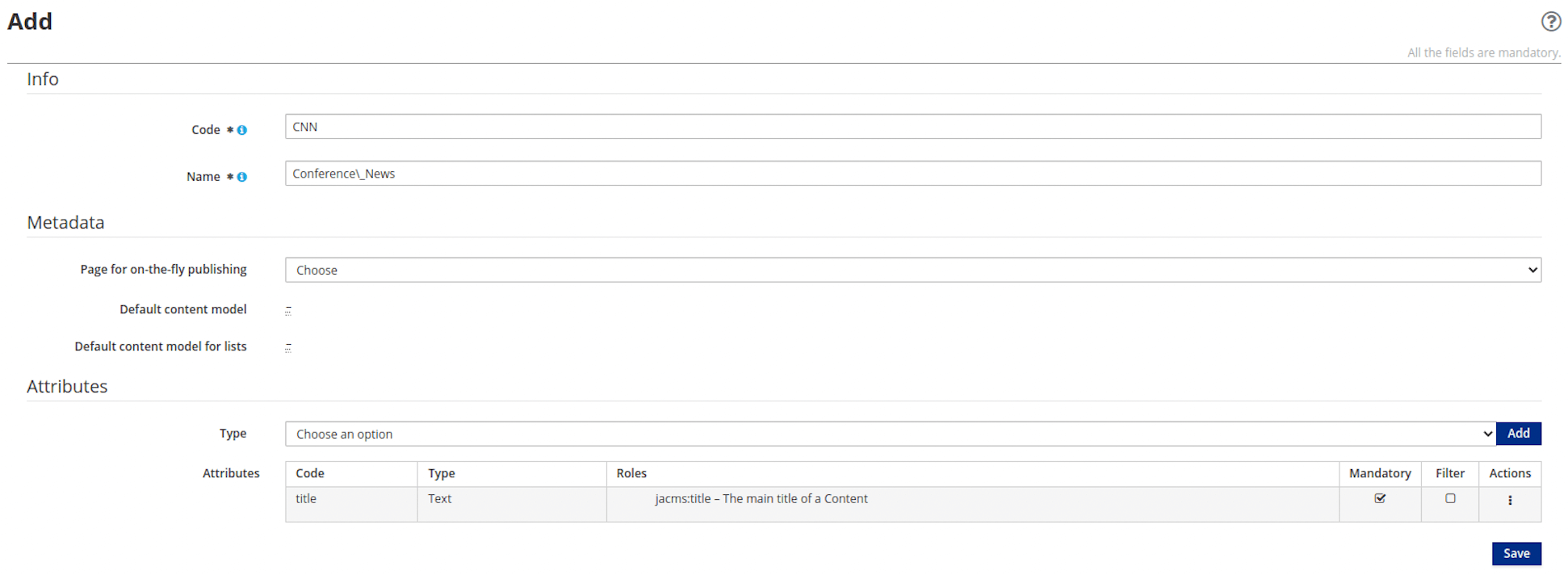
3. (Optional) Add other attributes to your content type, if desired
Each attribute requires its own configurations.
4. Click the Save button
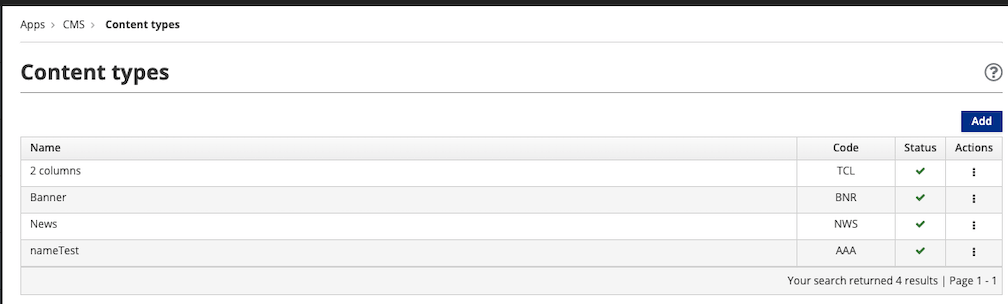
The content type you created is now displayed in the table.