
# Villanova Customer Portal
# Overview
The Villanova Customer Portal enables an organization to quickly provide a modern, self-service, customer-facing application for managing subscriptions. It includes lightweight integration to Jira Service Management for service ticket tracking and role based access control (RBAC) for a collaborative environment.
Key Features:
- Customizable service ticket tracking system with Jira Service Management
- Role based access control with Villanova Identity Management System
- Integrated user, customer, project, and subscription management
This tutorial covers:
# Installation
# Prerequisites
- A working instance of Villanova running on Kubernetes. See Getting Started for more information or install Villanova on any Kubernetes provider.
- Use the Villanova CLI command
ent check-env developto verify dependencies - A Jira Service Management account
- A Keycloak server (opens new window) configured with the SMTP settings to enable email verification for users
# Automatic Install via the Villanova Hub
# A. Integrate the Villanova Hub into your App Builder
- Log in to your App Builder and go to
Hub→Select Registry - Select
Villanova Cloud Hubif it has been configured, otherwise:- Choose
New Registry - In the pop-up window, enter the following:
-Name:Villanova Cloud Hub
-URL:https://auth.entando.com/entando-hub-api/appbuilder/api
then clickSave - Click on the Cloud Hub in the Registry
- Choose
# B. Install the Customer Portal
- From the Hub Catalog, click the
Customer Portal Application Bundle, andDeployandInstallit in the pop-up window. - Repeat for the
Content Bundle. The order is important because the Content Bundle cannot be installed without the Application Bundle.
# C. Assign Roles to Configure the Service
- Log in to your Keycloak instance as an admin
- Give at least one user the ability to manage the Customer Portal:
- Assign the user the
cp-adminrole for thepn-a71d68dd-166dc0f4-entandodemo-customerportal-serverclient. (See Role Assignment in ID Management for more details.) - Assign the user the
view-usersrole for therealm-managementclient. This role is necessary when assigning users to a Customer Portal project.
- Assign the user the
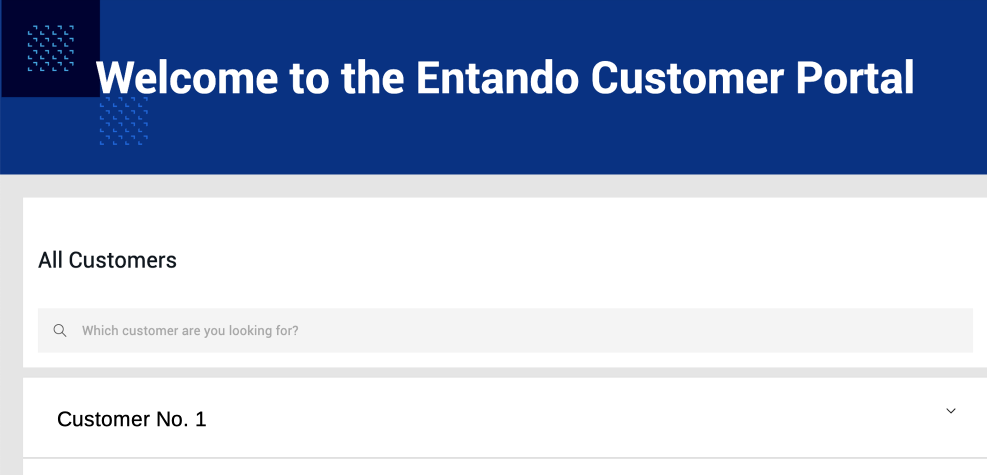
# D. Navigate to Your Customer Portal
- From the App Builder sidebar, go to
Page→Management. - Find the
Customer Portalfolder. - From the corresponding
Actionsdrop-down menu, go toView Published Page. You can set this as your homepage by going toPage→Settings, and choosing Customer Portal from the Homepage pull-down options.
# Manual Install
- To install the Customer Portal manually, run the following commands in this order:
ent ecr deploy --repo="https://github.com/entando-samples/customerportal-application-bundle.git"
ent ecr deploy --repo="https://github.com/entando-samples/customerportal-content-bundle.git"
Log in to the App Builder
Go to the
Hubfrom the left sidebar. The bundles should be displayed in the Local Hub asDeployed. Click thecustomerportal-application-bundleand thenInstall. Repeat for thecustomerportal-content-bundle.Navigate to your Customer Portal:
- From the sidebar, go to
Page→Management - Find the
Customer Portalfolder - From the
Actionspull-down menu, go toView Published Page
- From the sidebar, go to
# Configuration
# Administrators
To configure the Customer Portal and its users, the administrator needs Jira Service Management and Villanova Identity Management System credentials. The admin can then connect the Customer Portal to Jira and customize its features.
TIP
The built-in mapper for email must be enabled on the server client so that user accounts can be retrieved from Jira and service tickets can use that account information.
# Jira Service Management
Users who need access to the Customer Portal, beyond subscription and project information, must also have a Jira Service Management account. The administrator utilizes Jira Service Management to create users and projects, define the organization, and configure the service ticket system.
TIP
The password for the Ticketing System Connection is requested by the Customer Portal administrator and must be an API token generated by Jira (opens new window). For more information, go to Manange API tokens at Atlassian Support (opens new window).
The Jira Service Management REST API should follow the pattern https://YOUR-JIRA-SERVICE-MANAGEMENT-URL/rest/api/latest/. For reference, see Jira Service Management Cloud REST APIs (opens new window).
# A. Add Organizations and Projects in Jira:
- Go to Customers
- Add organizations and projects by completing the required fields
- Click on the name of each added organization to retrieve its ID from the URL. This is required to create and assign projects in the Customer Portal
- e.g. example.com/jira/servicedesk/projects/ECS/organization/3 → the organization ID is “3”
# Configure the Customer Portal
The Customer Portal must be configured for a specific Jira Service Management instance. The CP Admin Config page is where you establish the Jira connection, manage product versions, define subscription levels, and customize ticket types.
To access the CP Admin Config page, you must be given the cp-admin role in the Villanova Identity Management System as described above.
# A. View the CP Admin Config Page
- Go to
Pages→Management - Expand the Customer Portal folder and find
CP Admin Config - From the corresponding
Actiondrop-down, go toView Published Page
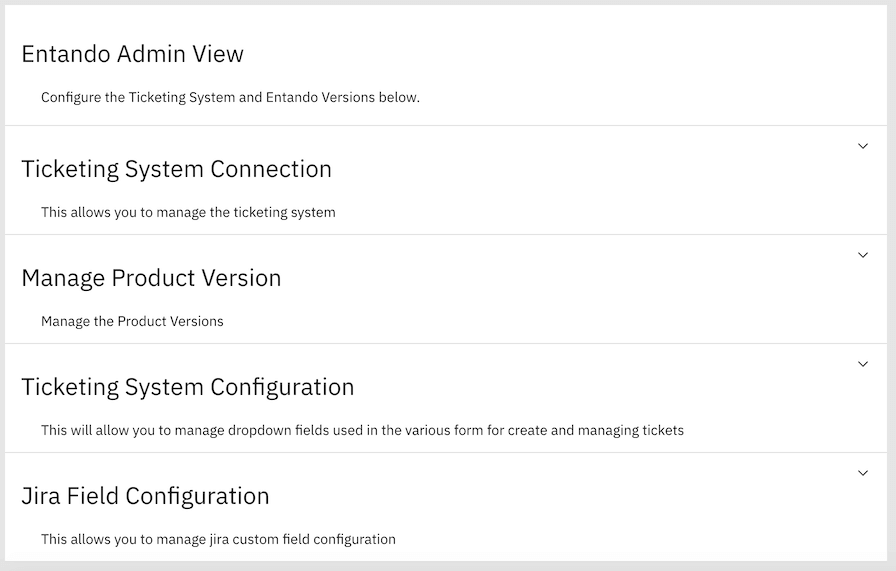
Once the Ticketing System Connection is set up with Jira and the correct URL, default parameters such as product versions and ticket types will be displayed. Expand each section with the down arrow to add and edit the fields as needed.
# Villanova Identity Management System
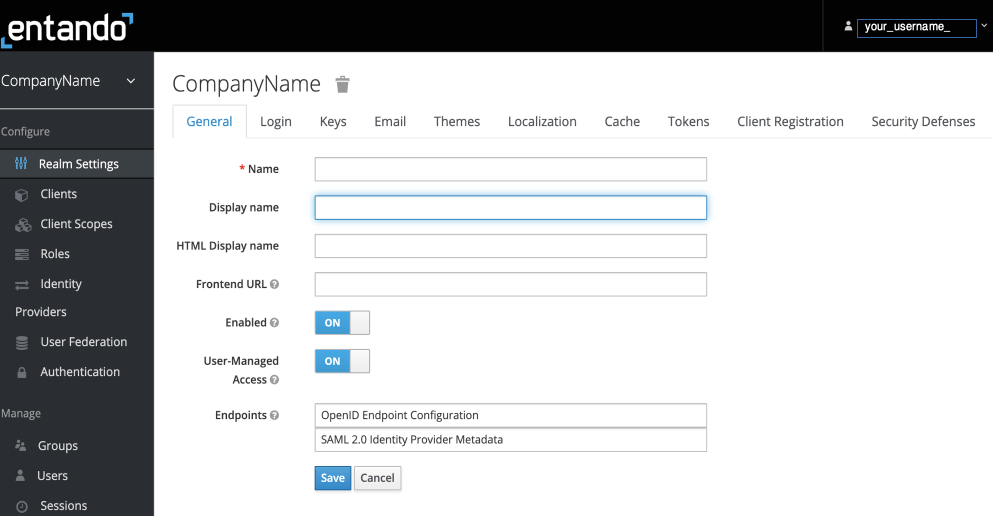
Log in to the Villanova Identity Management System to arrive at the landing page shown here. Use the left navigation bar to manage users, groups, and roles. Using the RBAC model, define what access users have by the roles and groups they are assigned. Some important information is noted below.
# A. The Realm Setting
The Realm is a set of users, credentials, roles, and groups. A user belongs to and logs in to a Realm.
# B. Default Roles
You can use the default roles by clicking on Client Roles and choosing entandodemo-customerportal-server. Access for each role is defined as follows:
cp-customer: Assigned directly to specific projects of a single customercp-partner: Assigned directly to specific projects of multiple customerscp-support: Read only view of all customer projectscp-admin: Admin access to the Customer Portal
# C. Create New User
- From the sidebar, go to
Users - Click
Add Useron the right - Complete the form as needed, but these fields are required:
Username: A unique nameEmail: Must use the same address used in JiraUser Enabled: Set to On
- Click
Save - Send an email to the user to activate their account and set a new password:
- Go to the
Credentialsheader - Under
Credential Reset, go toReset Actions→Update Password - Click
Send Email
- Go to the
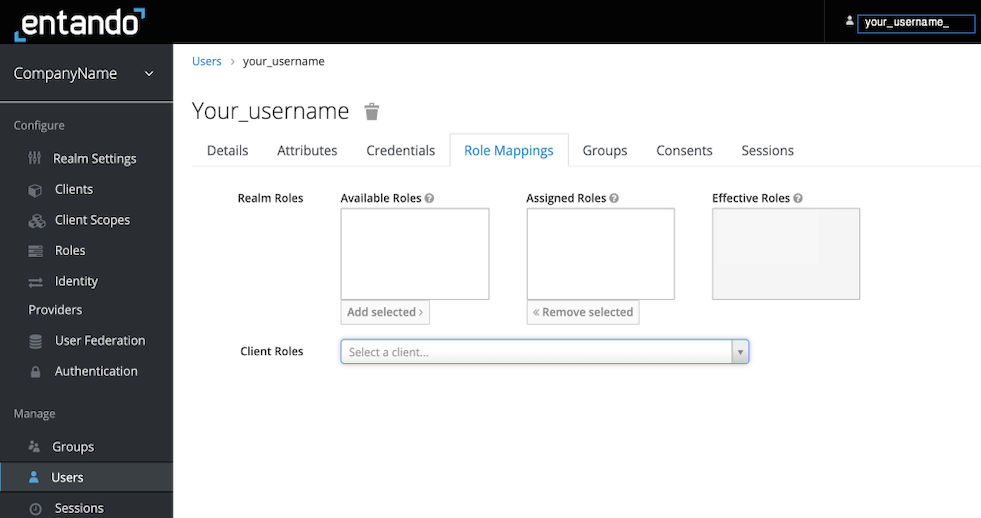
# D. Assign Roles to Users
- Click the
Role Mappingtab on top - Select the appropriate role(s) from
Available Rolesand assign them to a user by clickingAdd Selected:- To assign default roles, choose
entandodemo-customerportal-serverfrom theClient Rolespull-down - To manage users in the Customer Portal, a user will need the
view-usersrole underClient Roles→realm-management
- To assign default roles, choose
- Check the
Effective Rolescolumn on the right to ensure the correct roles have been assigned
# E. Assign Roles to Groups
Under Groups, assign roles to groups as needed. Multiple roles can be assigned to a single group.
# Managing the Customer Portal
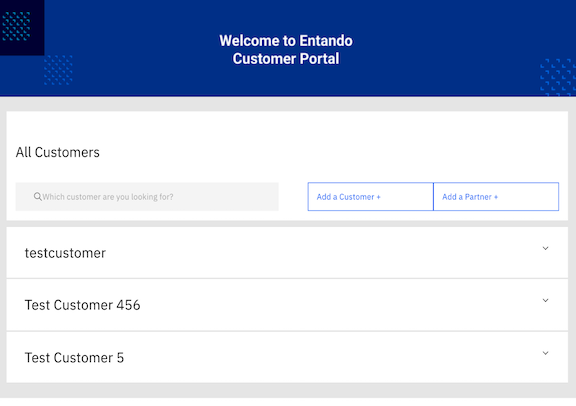
As administrator for the Customer Portal, you can create and manage users, customers, projects, and subscriptions. You can assign projects to users who have activated their account on Jira and have been assigned roles in the Villanova Identity Management System.
# A. Create a Customer or Partner
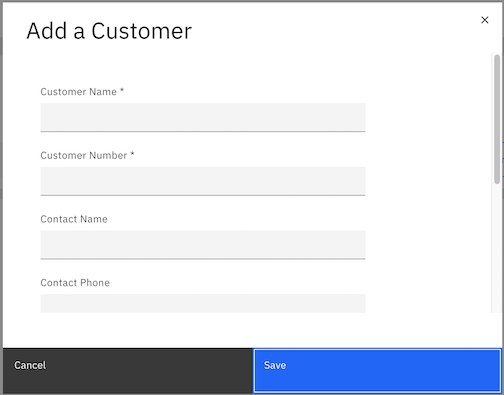
The processes to create customers and partners are similar. Below are the steps to add a Customer. A Partner is added the same way.
- Click
Add a Customer - Fill in the customer details. Note:
- The
Customer Numbermust be unique - The
Notesfield is visible to onlysupportandadminusers
- The
# B. Create a Project
- Go to the Customer Portal landing page
- Click on a customer to see the associated project list
- Click
Add a Project - Enter the
Projectinformation - Provide the Organization ID retrieved from Jira. Each project must have a unique Organization ID.
- Click
Save
# C. Assign a Project
- Go to the Customer Portal landing page
- Click on a customer to see the associated project list
- From the
Actiondrop-down menu, selectManage Users - Select the user for the
Project - Click
Submit
# D. Manage Partners and Subscriptions
Use the Action drop-down menu to manage Partners or request and manage subscriptions.
# Using the Customer Portal
To access the Customer Portal, your organization administrator needs to provide you with the proper user credentials. Once you log in to the Customer Portal, you will see a list of customers. Click on an entry to view customer details and track projects. You can create and track service tickets, as well as request subscriptions.
To create a Service Ticket for a project: Go to the Action pull-down menu and select Open Ticket
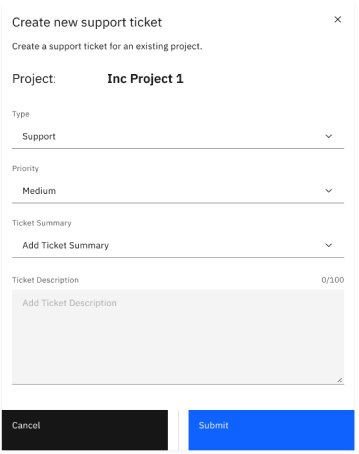
To request a Subscription or track Tickets: Go to the Action pull-down menu and select the corresponding option
# Resources
Go to Jira Service Management (opens new window) for more information
The source code for the Villanova Customer Portal (opens new window) can be found on GitHub, along with our other open source examples and tutorials